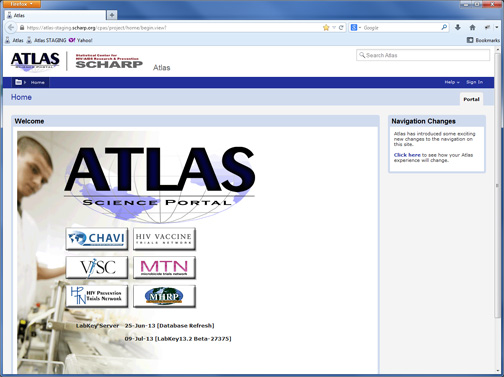
What are these changes?After August 1, 2013, Atlas will no longer have a left-hand navigation column. Instead, a solid bar running across the top of the page will provide navigation. We call this the Menu Bar. The Menu Bar combines navigation to projects and folders found previously in the left-hand column with the help, sign in, and admin navigation from the top-right of the page. |
 |
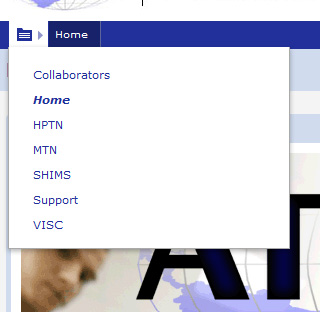
Navigating to your project:Projects can now be found by clicking the Project Icon in the Menu Bar. Clicking this icon will list all of your projects. Clicking an item in the list will take you to that project. in the Menu Bar. Clicking this icon will list all of your projects. Clicking an item in the list will take you to that project. |
 |
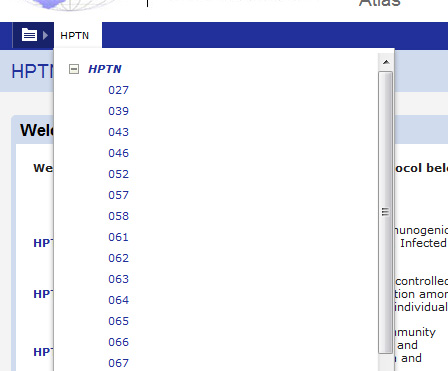
Navigating within your project:Navigating within your project follows a similar approach to navigating to your project. Next to the Project Icon in the Menu Bar is the name of the project you are currently in. Clicking the project name will list folders in that project in a drop-down list. Any folder in the drop-down list that contains subfolders will have a plus icon [+] that you can click to expand your selection. Similarly, clicking the minus icon [-] will collapse groups of subfolders. |
 |
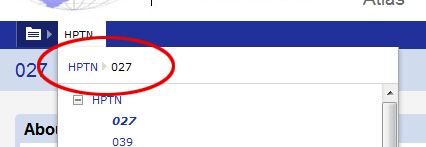
Other useful information:Breadcrumbs: The Menu Bar also displays a folder breadcrumb trail in the project folder drop-down list. You can click on any of the breadcrumb links to go back to a previous folder:Additional Menu Bar items: Depending on your project, there might be additional navigation options in the Menu Bar. If you have questions about this, please contact the Atlas team (atlas@scharp.org) or the manager of the project. |
 |
I have questions!The SCHARP Atlas team is more than happy to answer any questions you might have. Please contact us at atlas@scharp.org. |